Content Feature Test Doc (v2)
Corgi Intelligence turns raw payments data into ranked, explainable insights: which transactions to worry about, where approvals are leaking, and how much revenue is in play. This page is the building-block reference for the docs site. Each section names one block, explains what it is for and when to reach for it, then shows it rendered as real product content using a sample Corgi Intelligence guide. If a block renders cleanly here, it is safe to use in any product doc.
Read this two ways: the guidance paragraphs tell you, the author, how to use each block. The examples beneath them are the kind of content a reader actually sees. Every supported block appears at least once, including cross-doc links.
Cross-doc links
Link to another doc when the reader needs a concept that already lives somewhere else. You never re-explain it or let it drift out of sync. To create a link, type @ in Notion and pick the doc you want. That makes a mention. You do not have to wait until that doc is published. The site resolves it at build time. A link to a live doc becomes clickable. A link to a doc that is still in Draft shows as plain text for now, then turns into a real link on its own the next time the site builds after that doc ships. You never go back to fix it.
The three links below show exactly that. One points at a live doc, and two point at docs still in Draft:
A live doc, so this is a working link: Overview Dashboard
A doc that has not gone through the pipeline yet, so it is plain text now and auto-links once it ships: Payment Analytics
Another not-yet-published doc, same behavior: Dispute Management
Always @mention the doc. Do not paste a /docs/... web address by hand. The mention stays correct even if the doc's address changes, and it is what lets an unpublished link heal itself later.
Callouts
Use a callout to pull one important point out of the flow of the page: a warning, a tip, or a note the reader should not miss. Reach for warn when something is destructive or irreversible, tip for a shortcut, and info for a clarification. Keep it to a sentence or two. A page full of callouts trains readers to skip them. As a rule of thumb, aim for three or fewer callouts per major section, and never more than one of the same type in a row. In Notion, add a callout block and pick the icon that matches the type.
Never put a secret API key in client-side code or commit it to git. If a key leaks, roll it from the dashboard right away.
How to author this in Notion: add a callout block and choose the icon that signals its type — ⚠️ for warn, 💡 for tip, ℹ️ for info. On the published page it renders as a colored box matched to that type.
Checklists
Use a checklist when the reader needs to confirm a few prerequisites before they start, or track their way through a setup with no strict order. It reads as something to act on rather than something to memorize. In Notion, use a to-do list. Checked and unchecked items both render.
You will need a few things in place before your first request:
[x] A Corgi account with Corgi Intelligence enabled
[ ] A secret API key (created in the next section)
[ ] The analysis window you care about, for example the last 30 days
How to author this in Notion: use a to-do list. Tick the items that are already done and leave the rest unchecked — both states render on the published page.
Steps and inline formatting
Use a numbered list when order matters, so the reader can follow along one action at a time. Inside any paragraph or step, you can bold a UI label, italicize a term, or mark a value as inline code so it stands out from the prose. In Notion, write a numbered list and use the normal text styles. They carry through to the published page.
Every request authenticates with a secret API key, sent as a bearer token. To create one:
Open the dashboard and go to Settings → API keys.
Click Create key and choose the live environment.
Copy the key once, because it is shown only at creation. Live keys are prefixed
ck_live_.
How to author this in Notion: use a numbered list when order matters, and apply the normal bold, italic, and inline code styles in any text. All of it carries through to the published page.
Code blocks
Use a code block for anything the reader copies and runs: a shell command, a config snippet, a single-language sample. Set the block's language so the page highlights the syntax. In Notion, add a code block and pick the language from its menu.
Store the key as an environment variable so it never lands in your shell history:
export CORGI_API_KEY="ck_live_9f2a7c41e8b04d6fa1c3e5079b2d8a64"
How to author this in Notion: add a code block and pick its language from the block's menu. The published page highlights the syntax for that language.
Tabbed code
Use tabs when the same step differs by language or environment, so a reader can see their own stack without scrolling past the others. Tabs are a source island. You write them as a plain-text code block, and the pipeline converts them to a real tab switcher. Put one :::tab per language, with that tab's code beneath it.
The quickest way to confirm everything works is to list your most recent insights. Pick the language you work in:
What you type in Notion — a code block with its language set to Plain Text, containing exactly this. The pipeline reads the Plain Text setting as the signal to convert it into the tab switcher you see below:
:::tabs
:::tab cURL lang=bash
curl -s "https://api.corgilabs.ai/v1/insights?window=30d" \
  -H "Authorization: Bearer $CORGI_API_KEY"
:::tab TypeScript lang=ts
import { CorgiClient } from "@corgi/sdk";

const corgi = new CorgiClient({ apiKey: process.env.CORGI_API_KEY });
const { data } = await corgi.insights.list({ window: "30d" });
:::tab Python lang=python
from corgi import CorgiClient

corgi = CorgiClient(api_key=os.environ["CORGI_API_KEY"])
insights = corgi.insights.list(window="30d")
curl -s "https://api.corgilabs.ai/v1/insights?window=30d" \
  -H "Authorization: Bearer $CORGI_API_KEY"
How to author this in Notion: add a code block, then set its language to Plain Text. That setting is the switch that makes the pipeline convert it. Type :::tabs on the first line, then add one :::tab <Label> lang=<language> per tab, with that tab's code on the lines beneath it. On the published page it renders as a clickable tab switcher, where readers flip between cURL, TypeScript, and Python.
Response samples
Use a JSON code block to show the shape of a response, so the reader knows what to expect back before they write any parsing. Trim it to the fields that matter and keep the values realistic. Set the language to json for highlighting.
A successful call returns a list of insight objects, newest first. Here is a trimmed response:
{
  "object": "list",
  "window": "30d",
  "data": [
    {
      "id": "ins_3Qk2",
      "metric": "approval_rate",
      "value": 0.942,
      "delta_30d": -0.013,
      "severity": "high",
      "revenue_at_risk_usd": 18240.50
    },
    {
      "id": "ins_3Qjx",
      "metric": "dispute_rate",
      "value": 0.0071,
      "delta_30d": 0.0009,
      "severity": "medium",
      "revenue_at_risk_usd": 4120.00
    }
  ],
  "has_more": true,
  "next_cursor": "ins_3Qjx"
}
Results are paginated. When has_more is true, pass next_cursor back as the cursor parameter to fetch the next page.
How to author this in Notion: add a code block and set its language to JSON. Trim the payload to the fields that matter and keep the values realistic; the published page highlights it.
Tables
Use a table for parallel facts the reader scans rather than reads: a field reference, a set of options, a comparison. Keep one idea per column and put the name the reader looks up in the first column. In Notion, add a table and turn the header row on.
Each insight is a single, explainable finding: a metric that moved, why it moved, and the revenue attached to it. The fields you will use most:
| Field | Type | Description |
|---|---|---|
| id | string | Unique identifier, prefixed ins_. |
| metric | string | The measured metric, for example approval_rate or dispute_rate. |
| value | number | Current value: a rate is 0 to 1, money is in USD. |
| severity | string | One of low, medium, or high. |
| revenue_at_risk_usd | number | Estimated revenue tied to this insight. |
How to author this in Notion: add a table and turn on the header row. Put the value the reader looks up in the first column, one idea per column.
API reference blocks
Use an API reference block to document one endpoint: its method, path, and parameters. It gives every endpoint the same predictable shape, so a reader can scan parameters without hunting through prose. Like tabs, it is a source island. Write :::api <METHOD> <path> as the first line of a plain-text code block, then one parameter per line as name (type[, required]): description.
What you type in Notion — a Plain Text code block whose first line is :::api <METHOD> <path>, then one parameter per line. This exact source renders as the List insights reference below:
:::api GET /v1/insights
window (string, required): Lookback window, for example 30d or 90d.
cursor (string): Pagination cursor from a previous response.
severity (string): Filter by low, medium, or high.
List insights
Returns insights for a window, newest first.
/v1/insightswindowstringrequired
Lookback window, for example 30d or 90d.
cursorstring
Pagination cursor from a previous response.
severitystring
Filter by low, medium, or high.
Export insights
Kicks off an asynchronous export and emails a download link when it is ready.
/v1/insights/exportwindowstringrequired
Window to export.
emailstringrequired
Address that receives the download link.
include_rawboolean
Attach the raw transaction rows. Defaults to false.
How to author this in Notion: add a code block, set its language to Plain Text, then type :::api <METHOD> <path> on the first line (for example :::api GET /v1/insights). Add one parameter per line as name (type[, required]): description. On the published page it renders as a formatted API reference: the method and path at the top, then one row per parameter.
Multi-language SDK examples
When a task is worth showing end to end, give it in each language your readers use, so they can lift the one they need. Plain code blocks (not tabs) work well here, because the reader usually wants to compare them. This example flags the high-severity insights that move revenue.
In TypeScript, the list is fully typed, so you can act on each field directly:
const { data } = await corgi.insights.list({ window: "30d", severity: "high" });
for (const insight of data) {
  console.log(`${insight.metric}: ${insight.revenue_at_risk_usd} at risk`);
}
In Python, the client handles pagination for you with auto_paging:
for insight in corgi.insights.auto_paging(window="30d", severity="high"):
    print(insight.metric, insight.revenue_at_risk_usd)
If you mirror insights into your own warehouse, this query ranks metrics by the revenue they put at risk:
SELECT metric,
       AVG(value)                 AS avg_value,
       SUM(revenue_at_risk_usd)   AS total_at_risk
FROM insights
WHERE window = '30d'
GROUP BY metric
ORDER BY total_at_risk DESC;
How to author this in Notion: add a separate code block per language — plain blocks rather than tabs, so readers can compare them side by side — each with its own language set.
Collapsible details
Use a collapsible section to keep a long aside out of the main flow until the reader wants it: a troubleshooting branch, an edge case, a deep dive. The summary line should say plainly what is inside. In Notion, use a toggle. The toggle heading becomes the summary.
Getting a 401 Unauthorized?
Check that the Authorization header reads "Bearer <key>" with a live key (prefixed ck_live_), and that the key has not been rolled. Keys are environment-specific: a test key will not work against live data.
How to author this in Notion: use a toggle. Its heading becomes the summary the reader clicks, and the content nested inside becomes the body that expands.
Quotes
Use a quote to set off a short aside in the author's voice: a field tip, a rule of thumb, a piece of guidance that is not a step. It reads as a note from someone who has done this before. In Notion, use a quote block.
A tip from the field: start with severity=high and a 30-day window. It surfaces the few insights that actually move revenue before you widen the net.
How to author this in Notion: use a quote block. Keep it to a short aside in your own voice — a rule of thumb or field tip, not a step.
Video
Use a video for a short walkthrough that is faster to watch than to read: a dashboard tour, a setup demo. Upload the file so the page hosts it directly. An external YouTube or Vimeo link renders as a plain link, not a player. In Notion, drag an uploaded file into the page.
A two-minute walkthrough of reading and acting on insights:
🚧 This is an uploaded video example (mp4, webm, mov, or m4v, up to 50 MB). A YouTube or Vimeo link becomes a plain link, not a player.
How to author this in Notion: drag an uploaded video file into the page (mp4, webm, mov, or m4v, up to 50 MB). The pipeline re-hosts it and turns it into the :::video source island above, which renders as an inline player on the published page. An external YouTube or Vimeo link will not play, it becomes a plain link instead.
Images
Use an image for anything the reader needs to see rather than read: a screenshot, a chart, a schematic. Upload it so it is re-hosted for the web. An external image URL is not re-hosted and can break later. Add alt text that describes what the image shows. In Notion, drag an uploaded image into the page. Good alt text is specific: "Dashboard chart showing approval rate drop by country" is better than "Screenshot."
The same insights appear in the dashboard, ranked by revenue at risk:
🚧 An uploaded screenshot (png, jpg, webp, gif, or svg, up to 50 MB). Do not paste an external URL, because only uploaded files get re-hosted for the web.
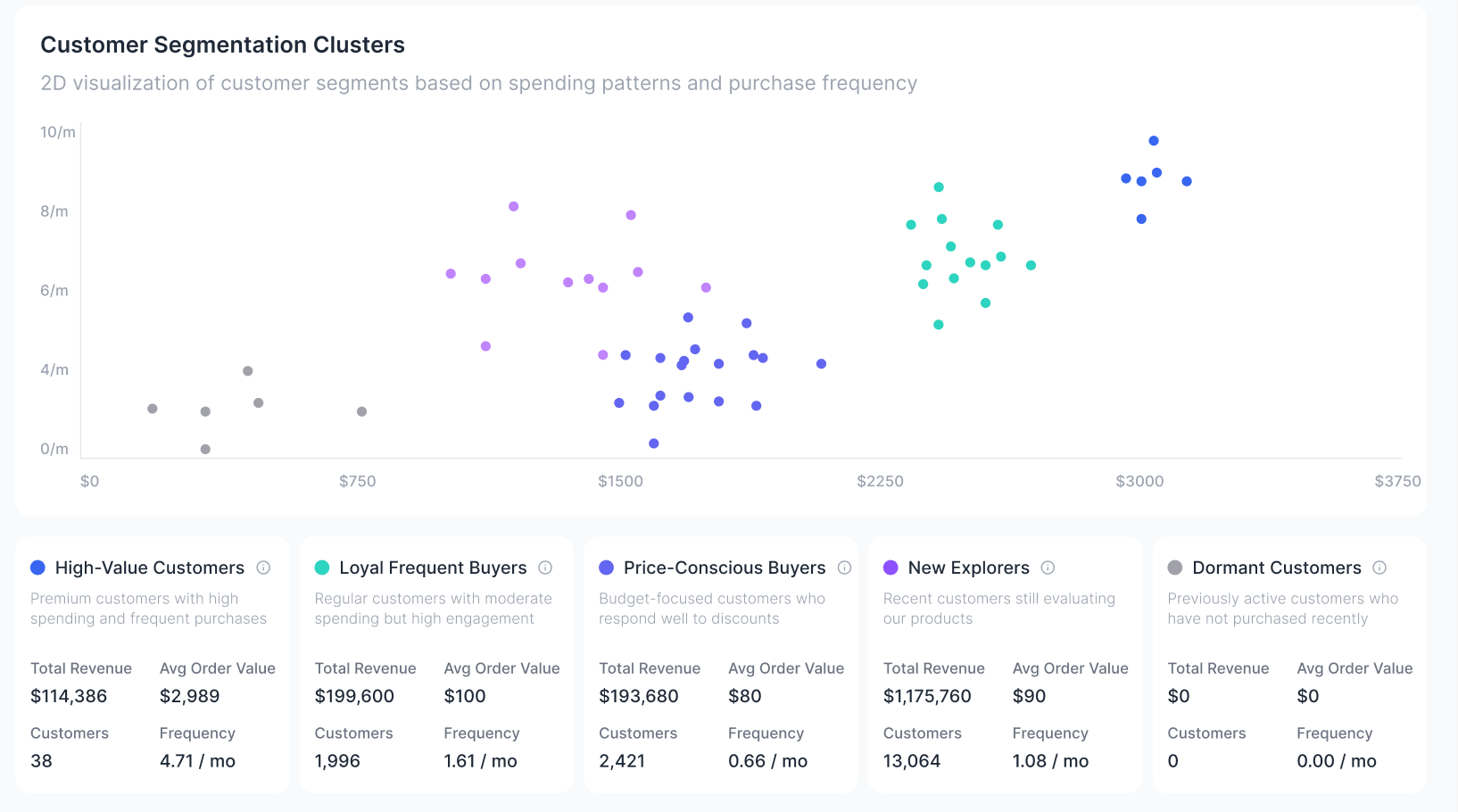
How to author this in Notion: drag an uploaded image into the page (not an external URL — only uploads get re-hosted), and add specific alt text such as "Dashboard chart showing approval rate by country."
Unsupported Notion blocks
Not every Notion block converts through the pipeline today. Blocks that are not explicitly listed above — including bookmarks, embeds, math equations, synced blocks, and page mentions — render as plain text or do not render at all. If you need one of these, open a docs-issue in Slack so we can assess whether to add support.
That is the full surface. If a block renders cleanly here, it is safe to use in any product doc.
Last updated: 2026-06-18